Configuring email templates
Drupal CMS provides an Email templates dashboard at Structure > Email templates (/admin/structure/email-templates/templates) that lets you preview, duplicate, design, and test HTML email layouts.
Email templates consist of HTML for layout, text, and placeholders (known as tokens) that represent information dynamically added to the email by Drupal CMS.
Below are details covering how to perform common email template related tasks.
Browse existing templates
- On the Templates tab you’ll see ready‑made layouts—for example Password reset and User account created.
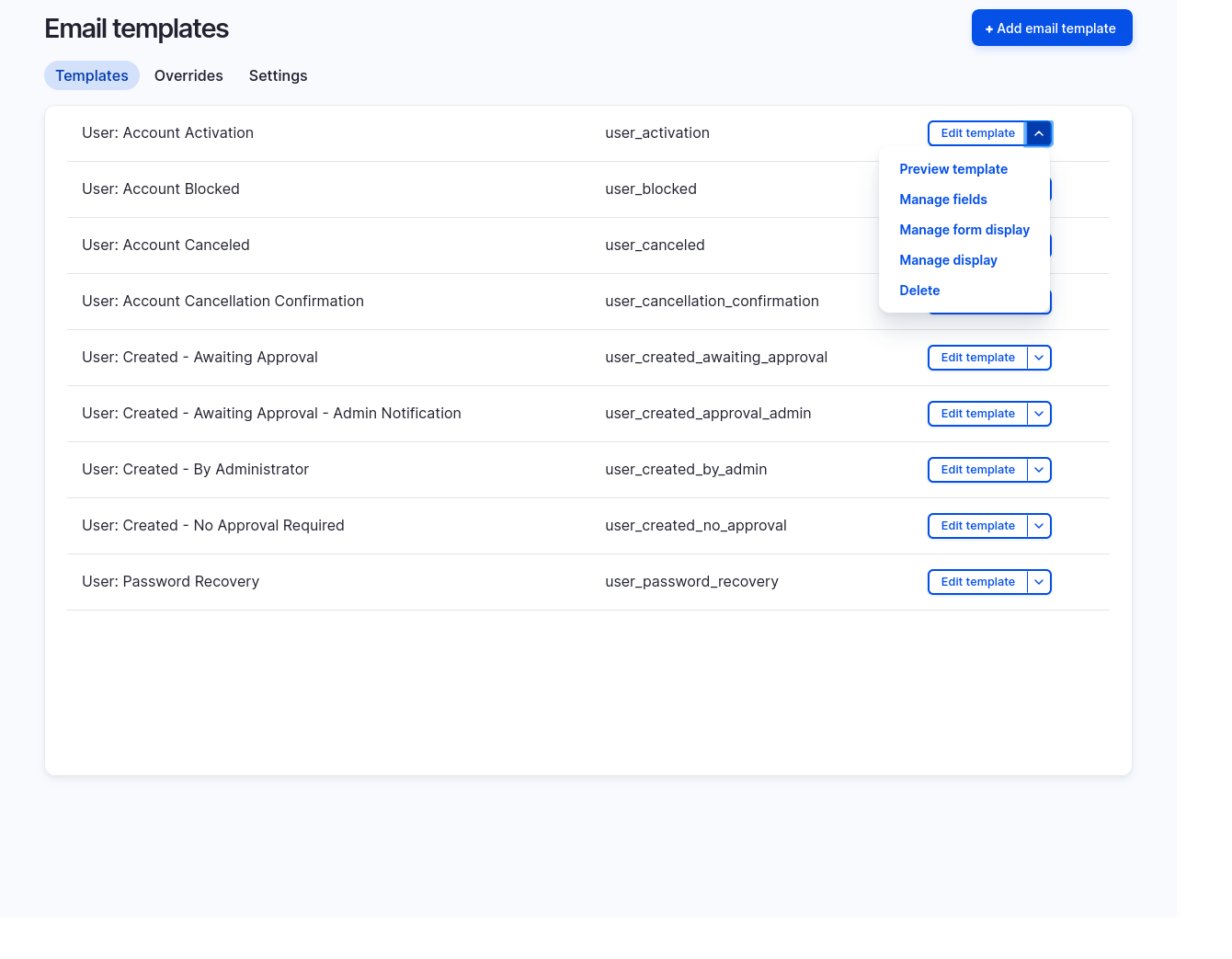
- Choose Preview template from the Operations menus to see how a template renders in a typical inbox.
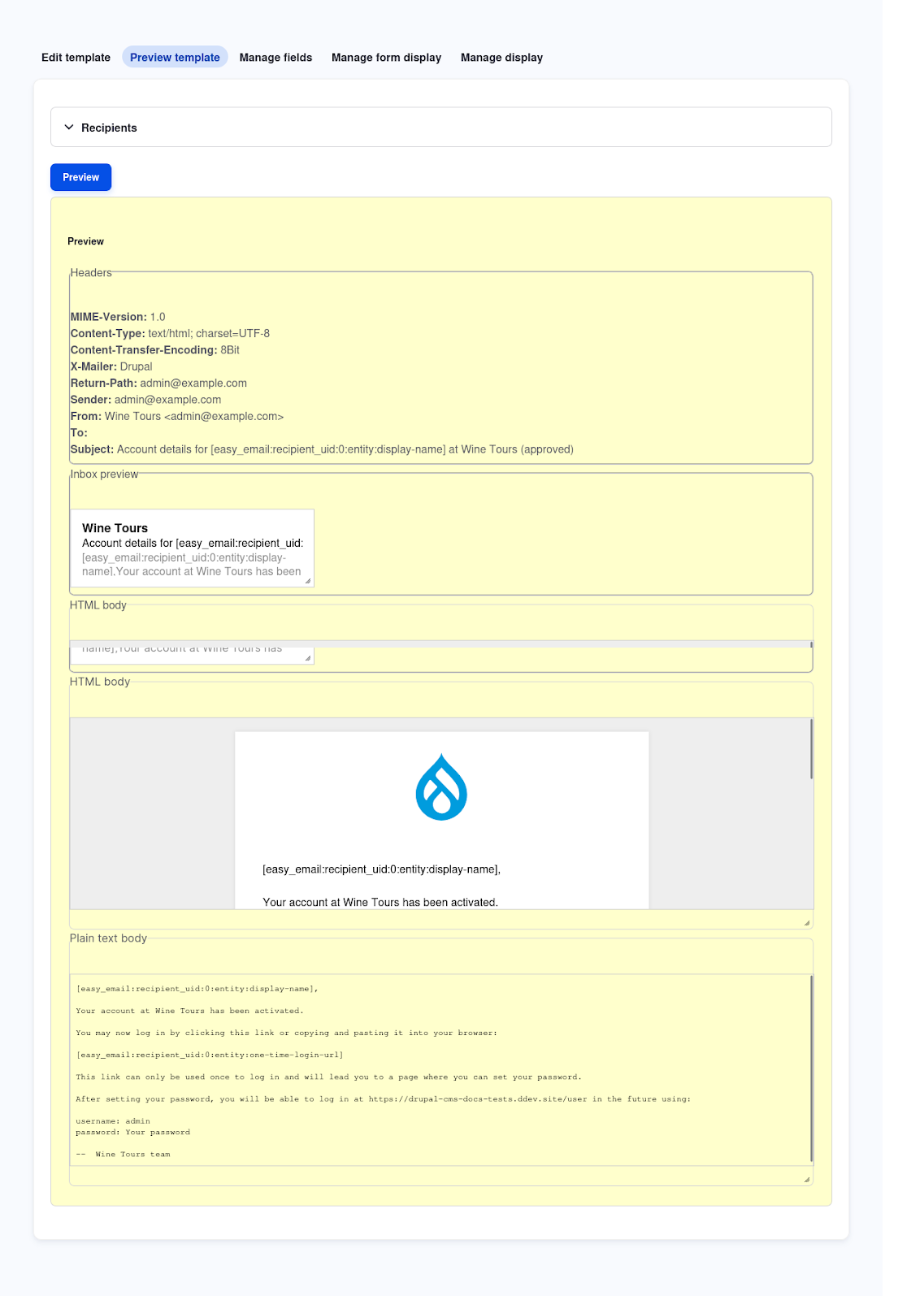
Edit the design and content of a template
Note: Using the UI you can edit the body of an email template. If you wish to change the HTML layout, header, footer, and colors, you’ll need to edit the associated Twig template file(s) and CSS. Start by creating a new theme that extends the provided Easy Email Theme. Then update the Easy Email configuration to use your new theme.
To modify the body content and layout of an email:
-
Locate the template you wish to edit and choose Edit template from the Operations menu.
-
Use the provided form to modify the template.
-
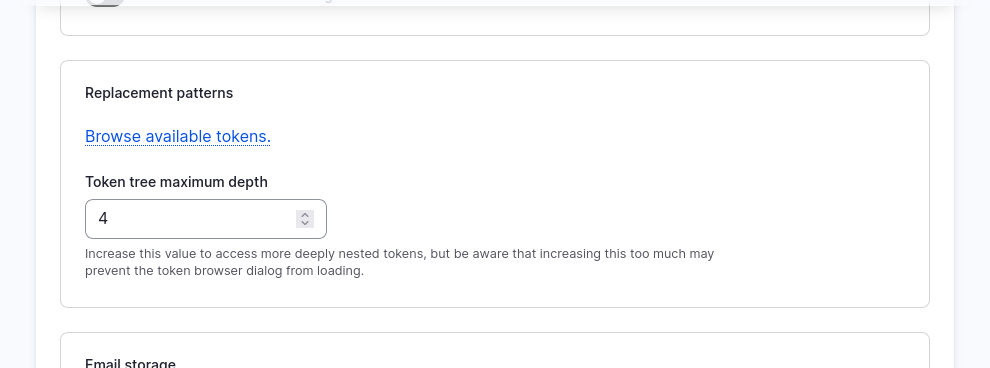
Click the Browse available tokens link under the textarea for editing the email’s content to see a list of dynamic content items that can be inserted into the template.
-
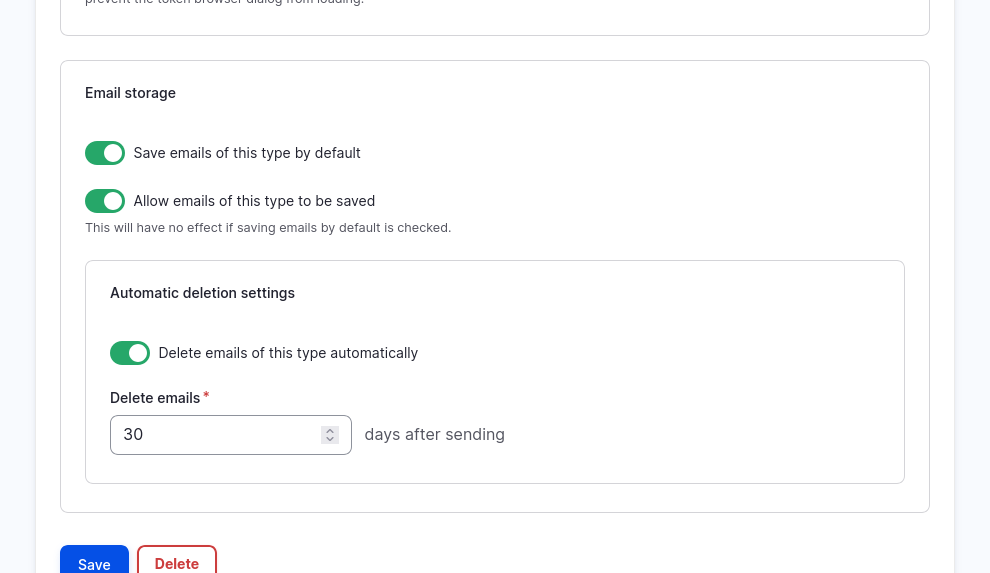
The Email storage section of the form allows you to control whether emails sent using this template are logged, and if so for how long.
Assign the template to an email (Overrides)
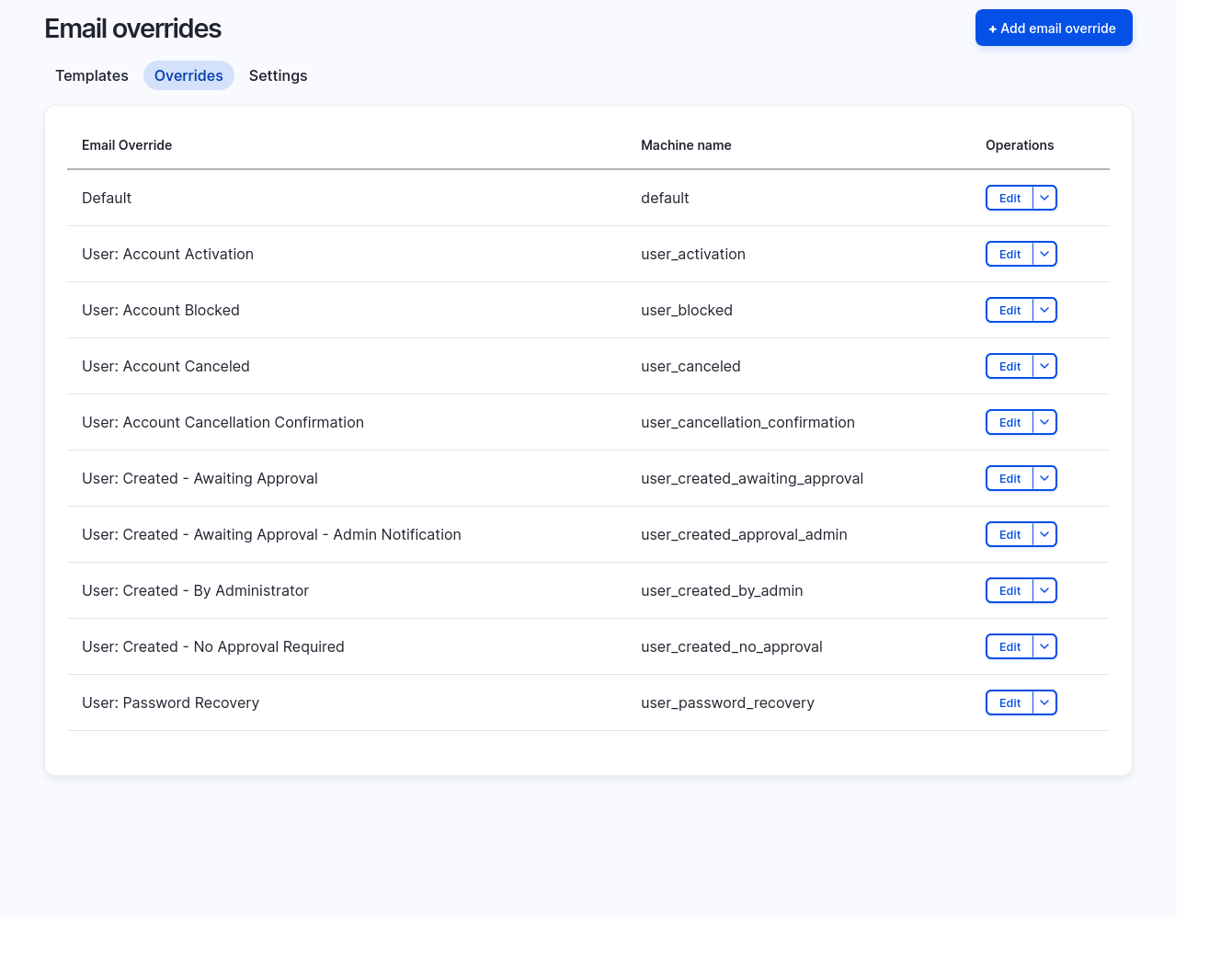
Templates by themselves don’t send mail—they need an Override that tells Drupal when to use them:
- Switch to the Overrides tab.
- Click Add email override.
- Pick an Email to override (for example User: Welcome) from the drop‑down. Every system generated email has a unique ID.
- Choose the template you just created.
- Save. From now on, that system email will use your custom template.
Tip: If a new module introduces an email that you haven’t customized yet, Drupal falls back to a default HTML template so your branding remains intact.
Viewing email logs
Drupal CMS records each message it attempts to send (this is configured per-email template) in an Email log located at Reports > Email log (/admin/reports/email).
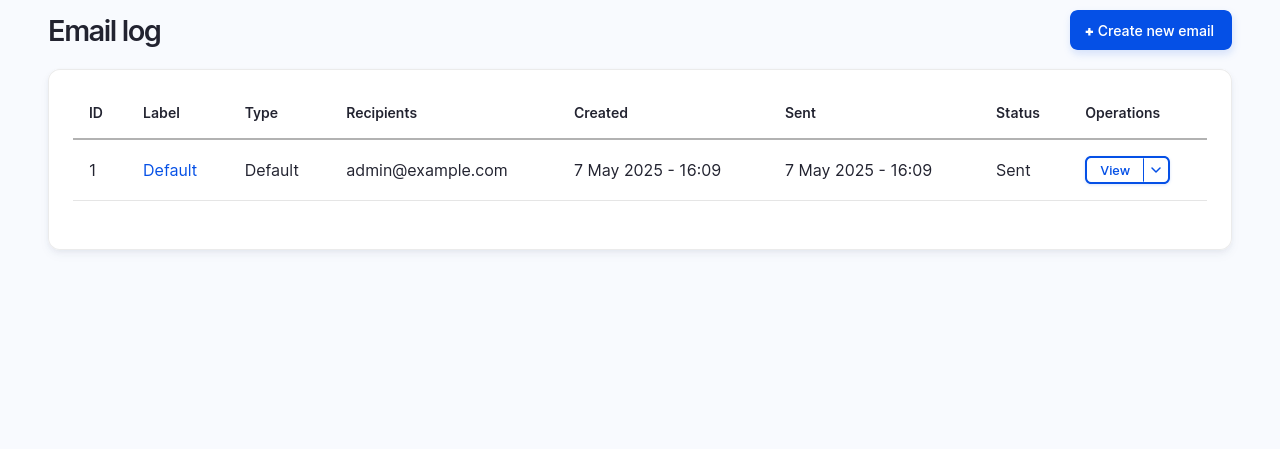
Use the Email log to:
- Confirm delivery attempts – Quickly see if Drupal tried to send a message you’re expecting.
- Debug issues – If status shows “Failed,” click View to review error details and compare with your SMTP provider’s logs.
- Verify template changes – After editing a template, send a test email and use the log’s View link to preview the final HTML.
The log automatically purges older entries based on your site’s log‑rotation settings, so consider exporting important records if you need long‑term auditing.